Hand Over a Whole Task
So far, you’ve asked Claude for one thing at a time. Now let’s try something bigger: handing over a whole job, the way you might to a capable assistant.
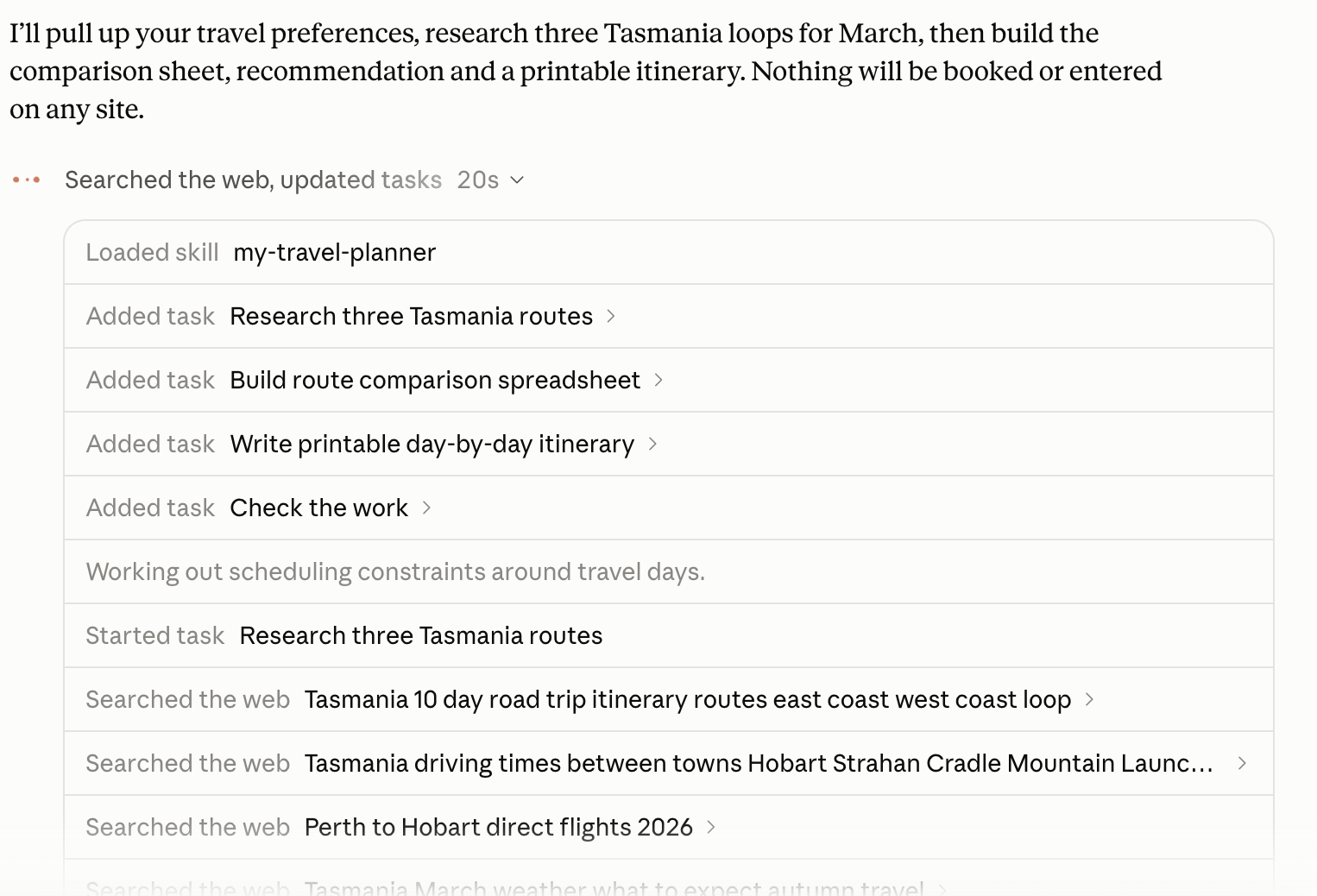
This is what people mean when they talk about AI agents. You describe the result you want, and Claude works out the steps, carries them out one at a time, and gives you the result. Along the way, it can search the web, use your connected apps, follow your skill, and create documents or spreadsheets.
Behind the scenes, an agent repeats a simple loop until the job is done:
PLAN → ACT → CHECK THE RESULT → DECIDE THE NEXT STEP → (repeat)Researchers call this the ReAct loop, short for Reason + Act. It was first described in 2022, and almost every AI agent today works this way.
What’s inside an agent?
An agent is a language model with a few extra parts that let it do things, not just write. Here’s how those parts show up in the task you’re about to try:
| Part | What it does | In your task |
|---|---|---|
| The brain | Reasons about the job and decides what to do next | Claude |
| Tools | Lets it take actions in the world | Searching the web, checking your calendar, creating a spreadsheet |
| Memory | Keeps track of what matters along the way | Your skill, your request, and what it’s found so far |
| A plan | Breaks a big job into smaller steps | The list of steps you’ll see as it works |
This means you don’t have to manage each step yourself.
Which plan do I need?
Handing over a whole task needs a paid Claude plan (Pro, Max, Team or Enterprise). If you’re on the free plan, you’re welcome to read through so you know what to expect.
First, check your permission setting
In the newer version of Claude, there’s a permission setting in the message box. It controls how often Claude stops to check with you.
Make sure it’s set to Manual. That means Claude asks before taking any action, so nothing happens without your OK. Manual is the default, and it’s the best setting while you’re learning.

Start the task
Open a new chat and type your request. Claude will recognise that it’s a bigger job.
Select Cowork in the message box first, then type your request.
Here’s an example. Change it to suit a trip you’re thinking about:
I'm planning 10 days in Tasmania next March for two people. Using my travel preferences:
1. Research three possible routes around the island.
2. Compare them in a spreadsheet: driving time per day, highlights, and rough accommodation cost per night.
3. Recommend the one that best fits my preferences, and explain why in a few sentences.
4. Write a day-by-day itinerary for that route as a document I can print.
Don't book anything or enter any details on websites. I'll check back in 15 minutes.
Notice how the request is put together. It says what to do, what form the results should take (a spreadsheet and a printable document), and what not to do. Saying what not to do is a good habit to get into.
While Claude works
- Watch the progress. Claude shows the steps it’s working through, so you can see how it breaks the job down.
- Answer any questions. If Claude needs a decision from you, it will ask.
- Read before you approve. Because your setting is on Manual, Claude will ask before taking actions. Read each request before you click.
- Check for messages if it seems stuck. If nothing seems to be happening, scroll down to the latest message. Claude may be waiting for your answer or approval.
- Step away if you like. Bigger tasks keep running in the cloud, even if you close the page or your laptop. You can also check in from the Claude app on your phone.
When it’s finished
Open the spreadsheet and the itinerary Claude made.
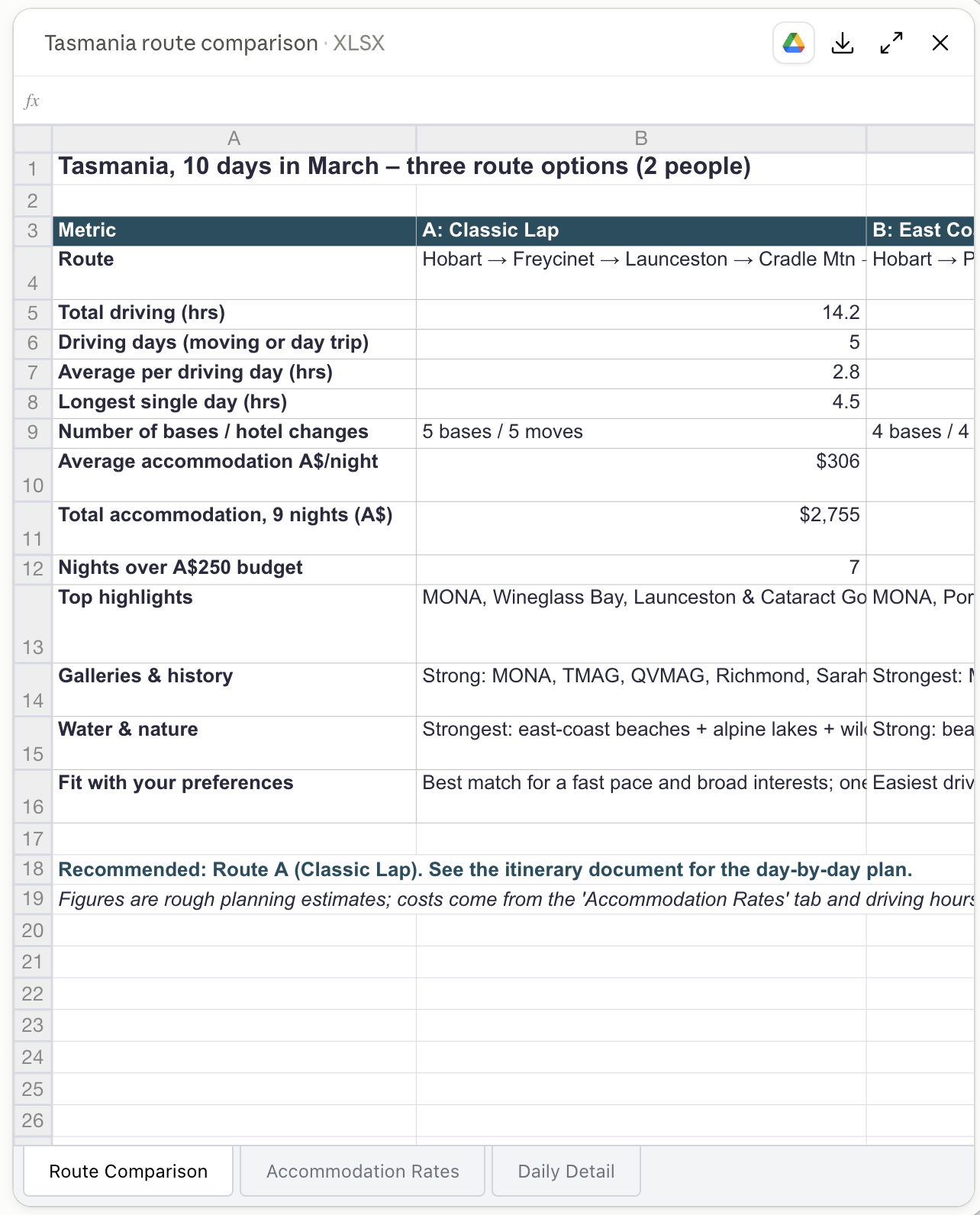
Then look it over, as you would with work from a new assistant:
- Did it follow the firm rules from your skill?
- Are the websites it used real and trustworthy? Click a few and see.
- Do the prices and opening times look right? Check one or two on an official site.
- Ask for one change, like “Swap day 4 for something less strenuous”, and watch how it updates.
Want to read more?
- Claude Cowork and chat are one Claude (Claude Help Center)