Upload Your Skill
Your skill is written. Now let’s get it into Claude.
Claude needs skills packaged in a particular way: your SKILL.md file goes inside a folder, and that folder is zipped into a single file. It’s a bit like posting a letter: the letter goes in an envelope, and the envelope goes in a parcel.
When you’re done, it will look like this:
my-travel-planner.zip
└── my-travel-planner/
    └── SKILL.md
1. Make a folder
Make a new folder called my-travel-planner. The folder name needs to match the name line in your skill’s header exactly.
Right-click on your desktop and choose New Folder, then type my-travel-planner.
Right-click on your desktop and choose New > Folder, then type my-travel-planner.
If you’re using the starter folder from your facilitator, you already have it. Otherwise, open the Files app, go to On My iPad, tap the … button and choose New Folder.
2. Save your file inside it
Save your skill into that folder with the name SKILL.md: capital letters, then .md at the end.
In TextEdit, choose File > Save, pick your my-travel-planner folder, and type SKILL.md as the name. If TextEdit asks whether to use .md or .txt, choose Use .md.
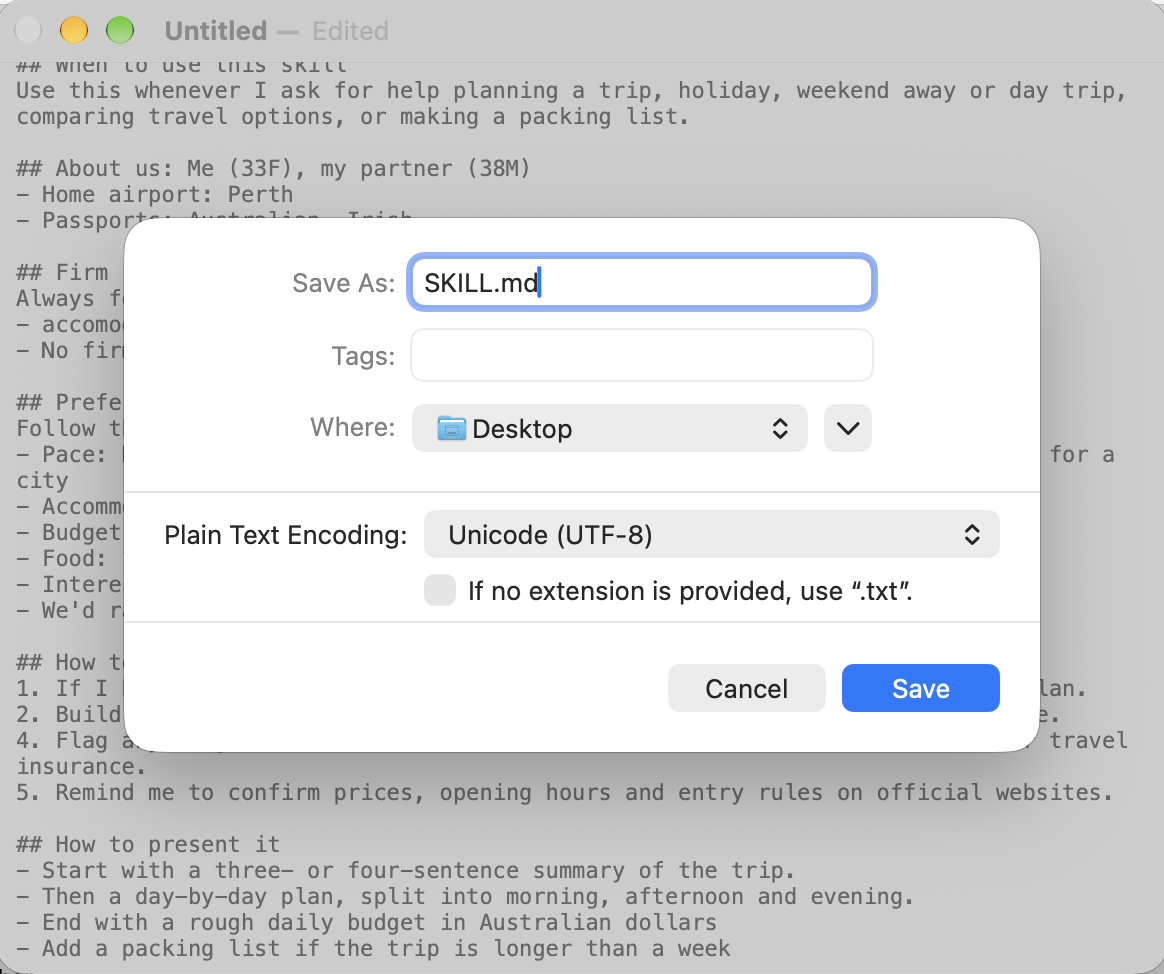
In Notepad, choose File > Save As, pick your my-travel-planner folder, and type SKILL.md as the name. Then change Save as type to All files. This stops Windows from saving it as SKILL.md.txt.
Screenshot needed
Notepad’s Save As window with the file name SKILL.md and Save as type set to All files.
Save as notepad-save-as.png
Save in your editor app. If you started from the starter folder, it’s already in the right place. Otherwise, save it into your my-travel-planner folder in the Files app.
3. Zip the folder
Now zip the folder (not just the file inside it). Zipping packs everything into one file that you can upload.
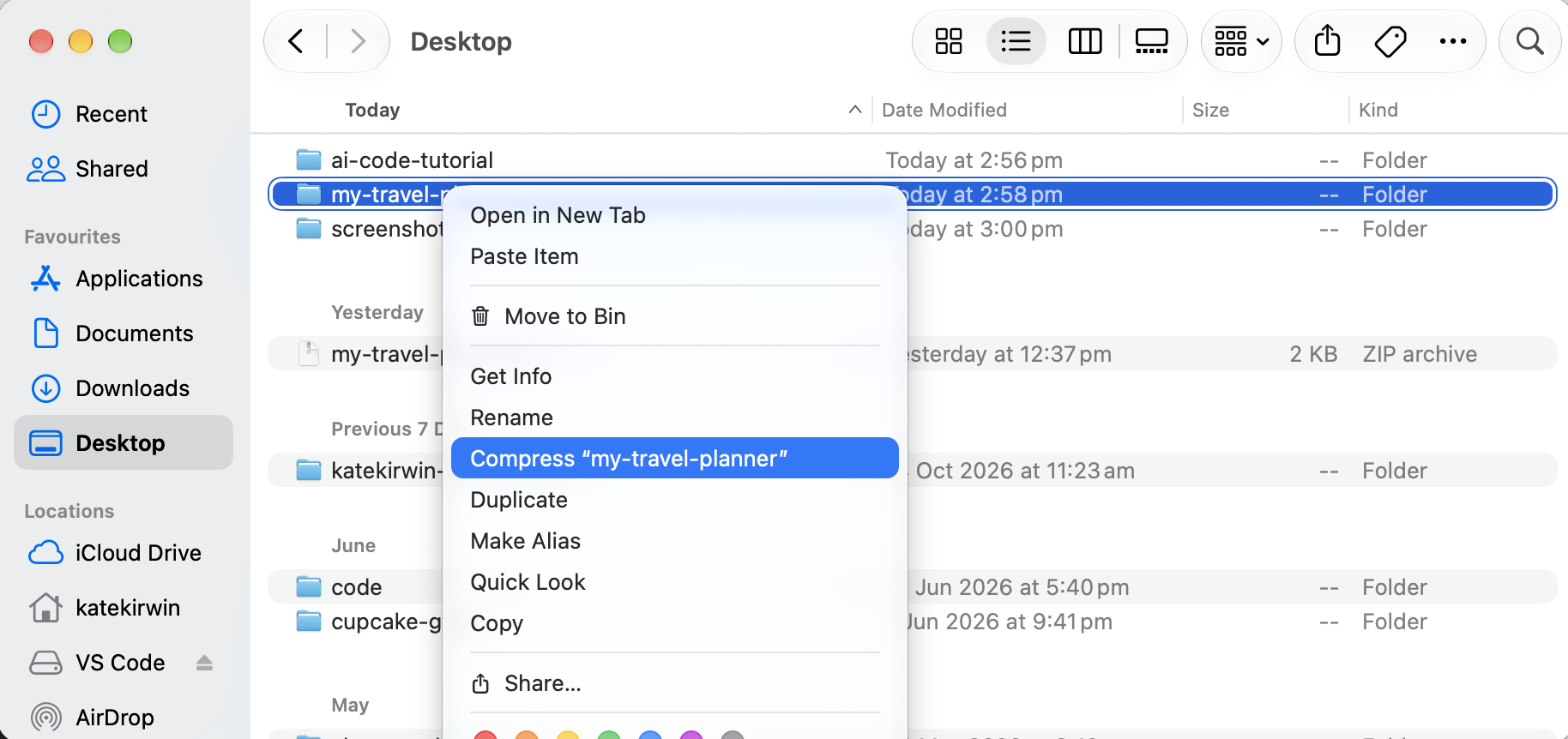
Right-click the my-travel-planner folder and choose Compress “my-travel-planner”. A new file called my-travel-planner.zip appears next to it.
Right-click the my-travel-planner folder and choose Send to > Compressed (zipped) folder. On newer versions of Windows you may see Compress to ZIP file instead. A new zip file appears next to the folder.
Screenshot needed
The Windows right-click menu on the folder, showing the compress option.
Save as windows-compress.png
In the Files app, press and hold the my-travel-planner folder and choose Compress. A file called my-travel-planner.zip appears next to it.
Screenshot needed
The iPad Files app menu on the folder, with Compress highlighted.
Save as ipad-compress.png
4. Upload it to Claude
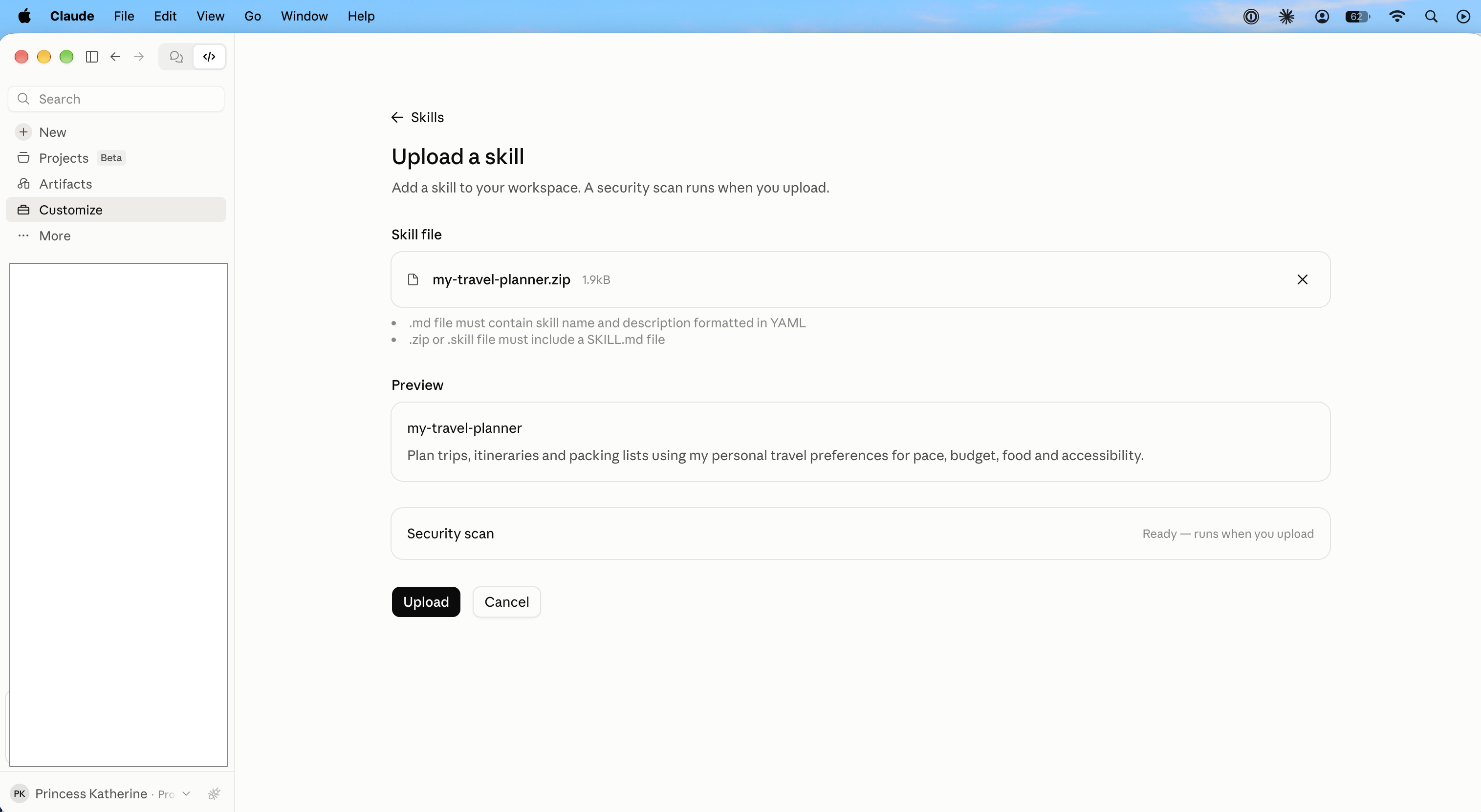
- In Claude, go to Customize > Skills. This is your skills library, where all your skills are kept.
- Click Add, then choose Upload a skill.
- Choose your
my-travel-planner.zipfile.
On an iPad and can’t see the upload option?
Open claude.ai in Safari instead, sign in, and upload from there. Once it’s uploaded, your skill shows up in the Claude app too.
5. Switch it on
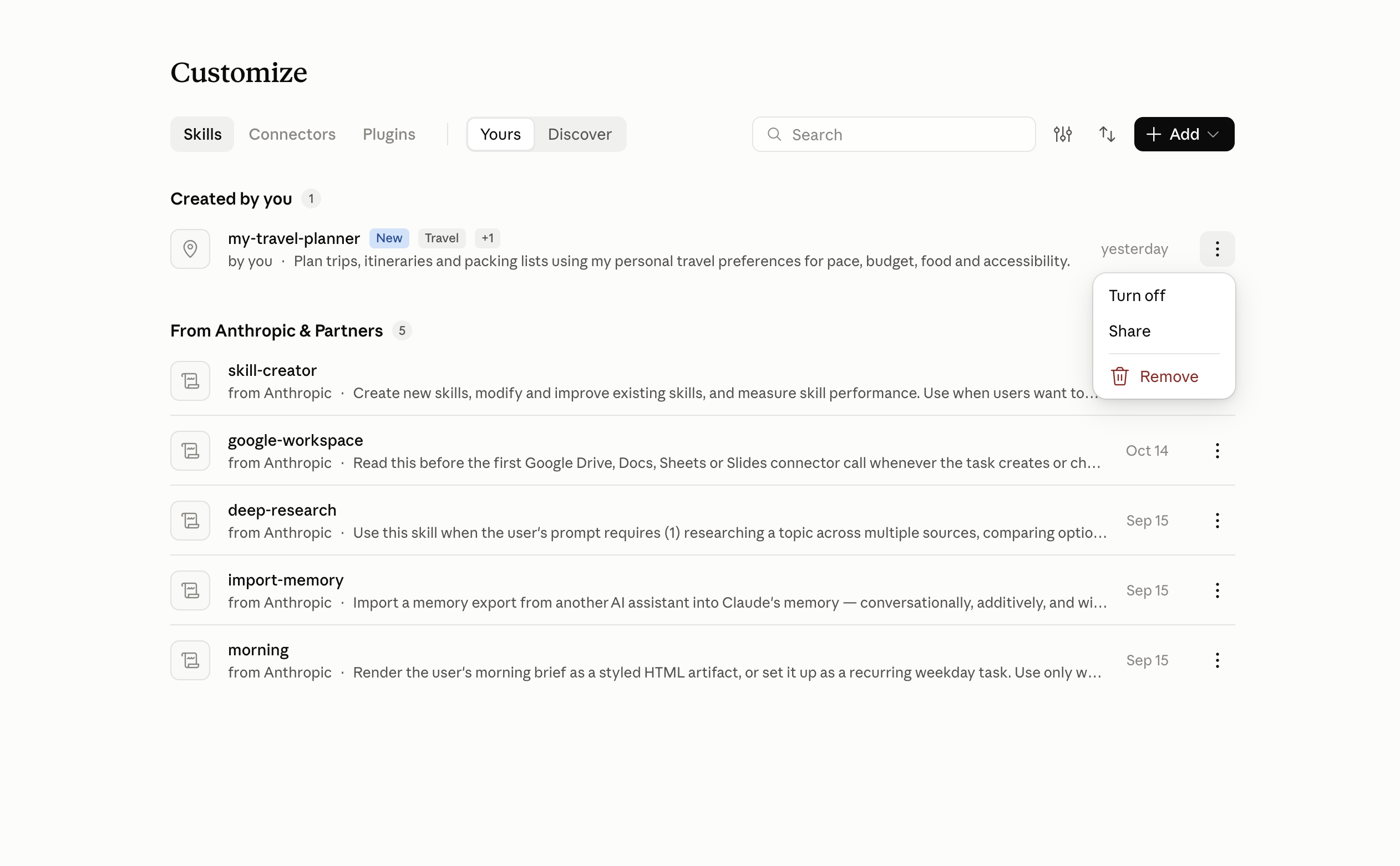
Your skill appears under Created by you as my-travel-planner. New skills are switched on straight away. To check, click the ⋮ button next to it: if you see Turn off, it’s on. Your skill is now ready to use.
Want to read more?
- Use skills in Claude (Claude Help Center)