Schedule a Weekly Brief
A scheduled task is a job Claude does for you regularly, without you having to ask each time.
You describe the task once and choose how often it runs (hourly, daily, on weekdays or weekly). Claude does the rest. It can use your connected apps and your skill, and because it runs in the cloud, it keeps working even when your computer is off.
In this step, you’ll set up a short brief that arrives every Monday in the lead-up to a trip.
Which plan do I need?
Scheduled tasks need a paid Claude plan (Pro, Max, Team or Enterprise).
Keep scheduled tasks to reading and summarising
No one is watching when a scheduled task runs, so stick to tasks that look things up and report back. Don’t schedule anything that sends messages, buys things, or would be hard to undo. Anthropic recommends this too.
Create your brief
- Open a new chat.
- Paste in the request below, changed to suit your trip.
- Answer any questions Claude asks.
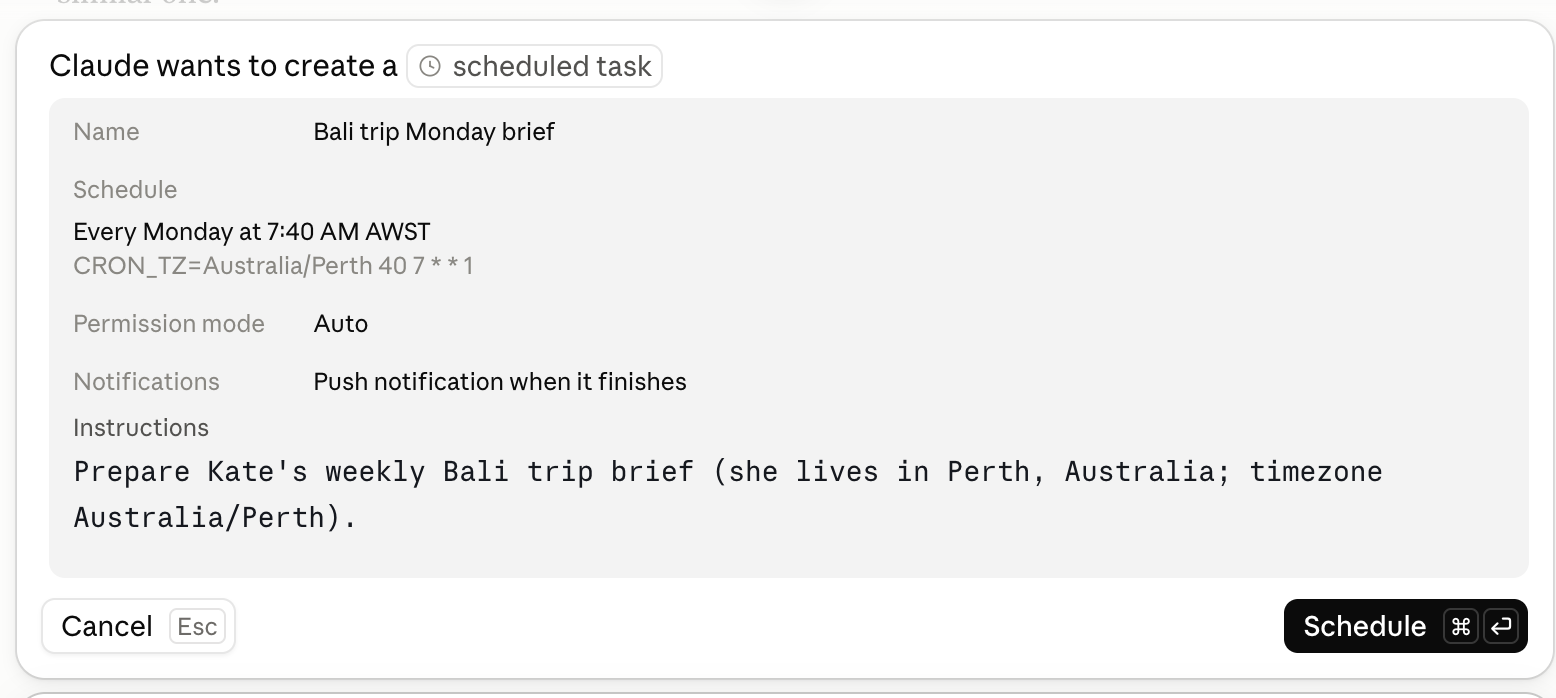
- Claude will show you a summary with the task’s name, its schedule, and the instructions it will follow each time. Read through it, then click Schedule.
- Click Scheduled in the left sidebar.
- Click New task, then Create with Claude.
- Paste in the request below, changed to suit your trip, and answer any questions.
- When Claude shows you the plan, check it over, then click Schedule.
Every Monday at 8am until my trip to Japan in April, prepare a short brief:
- Any changes to the official government travel advice for Japan (for Australians, Smartraveller)
- The weather outlook for Tokyo and Kyoto for the week we travel
- Anything in my calendar in the week before I leave that might clash with packing or getting to the airport
Keep it to one page. Don't send emails or change anything in my calendar.
Change the destination and the day to suit you. If you don’t travel on an Australian passport, swap in your own country’s travel advice website.
Try it now
You don’t need to wait until Monday to see it.
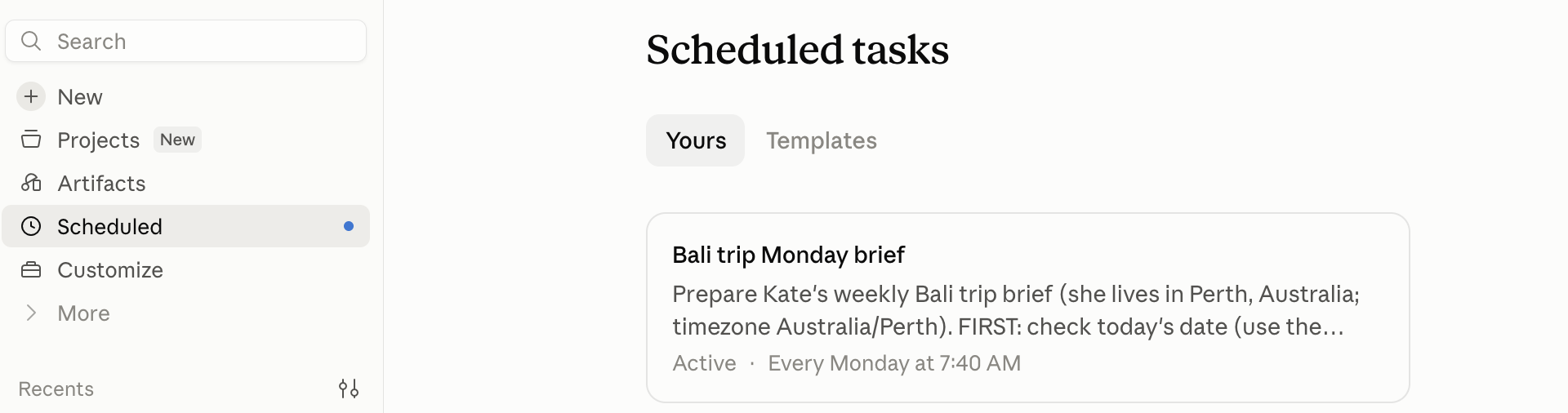
- Click Scheduled in the left sidebar. You’ll see your new task and when it will next run.
- Open the task and choose to run it now.
- Read the brief. Is it what you asked for? Is the information up to date? If anything needs changing, open the task and edit its instructions.
Tidy up when you’re done
When you no longer need the brief (for example, once you’re home), go back to Scheduled and pause or delete it. Tasks that keep running use up your plan’s allowance.
Using an iPad?
This all works the same way on an iPad. Find Scheduled in the sidebar, and turn on notifications for the Claude app so you know when your brief is ready.
Want to read more?
- Schedule recurring tasks (Claude Help Center)