Build Your Own Travel Assistant
Now that you know a little about how AI works, let’s put it to use on something enjoyable: planning a holiday.
Over the next few pages, you’ll teach Claude how you like to travel: your pace, your budget, the things you love and the things you’d rather skip. Then you’ll use Claude to help plan a trip around your own calendar, hand it a bigger research job, and set up a short brief that arrives each week before you leave.
You won’t need to write any code. Everything is done in plain English.
What you’ll make
You’ll make a skill. A skill is a set of instructions you write once and save to your Claude account. Whenever you ask about something your skill covers, Claude reads your instructions first and follows them.
It’s a bit like the notes you might give a travel agent before your first meeting. If they already know you don’t like early starts but do love a good market, they can plan something that suits you. A skill does the same for Claude, so you don’t have to explain yourself every time.
The steps
- Describe how you travel
- Write your skill
- Upload your skill
- Test and improve it
- Connect your apps
- Hand over a whole task
- Schedule a weekly brief
- Stay in control
Before you start
- Sign in to Claude at claude.ai, in the Claude desktop app, or in the Claude app on your iPad.
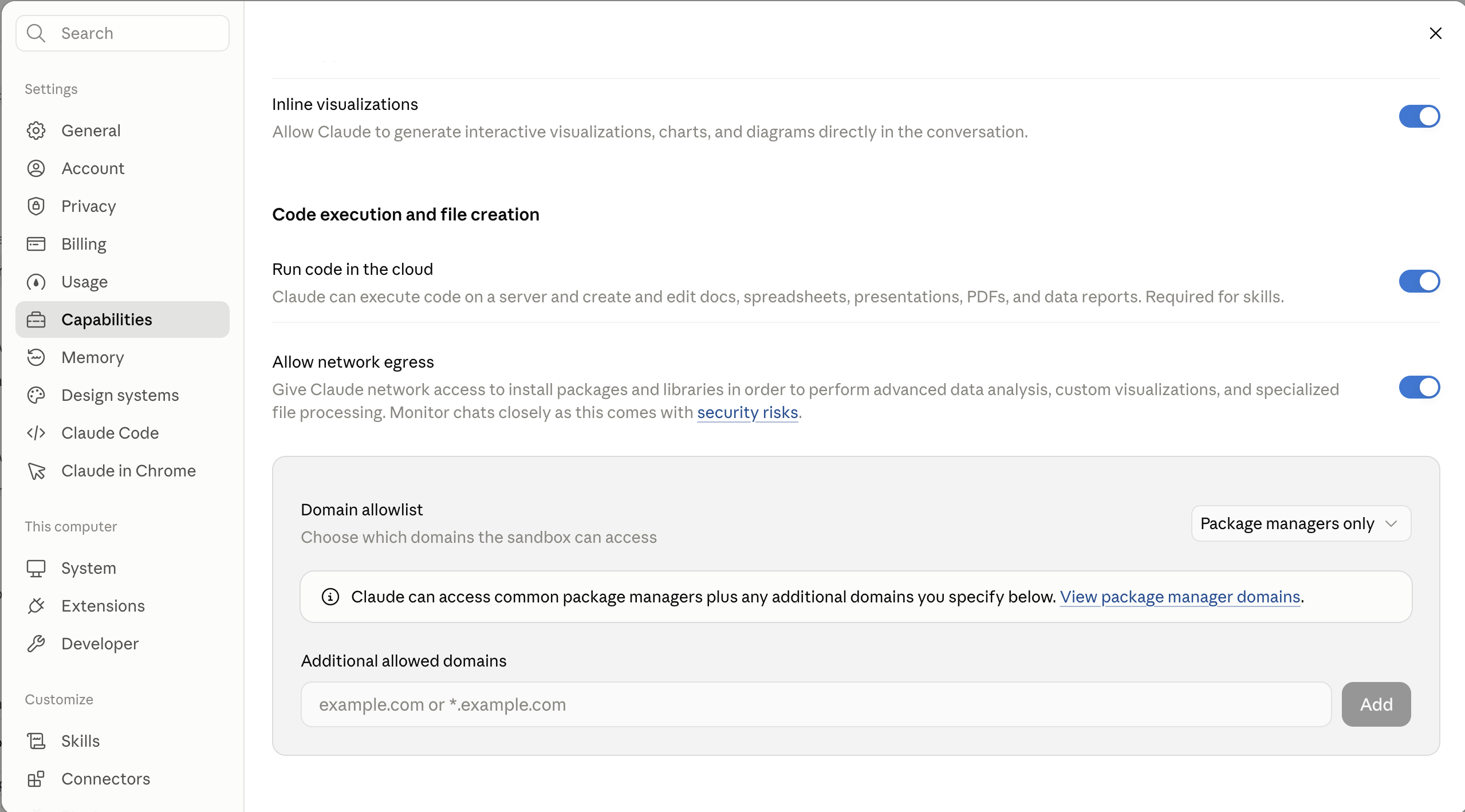
- Turn on code execution. Open Settings, then Capabilities. Under Code execution and file creation, check Run code in the cloud is switched on. Skills need this setting to work.
- Have a trip in mind. A trip you’re hoping to take is ideal, but one you’ve already been on works well too.
- Have your Google or Microsoft sign-in details handy (or your phone, if you get a sign-in code). You’ll need them to connect your calendar.
Which plan do I need?
Steps 1 to 5 work on every Claude plan, including the free one. Steps 6 and 7 (handing over a whole task, and scheduling a brief) need a paid plan: Pro, Max, Team or Enterprise. If you’re on the free plan, you’re welcome to read through those steps so you know what’s possible.
Using an iPad?
You can do this whole tutorial on an iPad. Before you start, install the Claude app and a plain-text editor such as Runestone from the App Store. Look out for the iPad tabs and tips along the way.
You might see the name Claude Cowork in Claude’s help pages. Those features are now part of Claude itself, so in this tutorial we just say “Claude”. If your message box shows separate Chat and Cowork buttons, you have an earlier version of the app, and we’ll point out where the steps are different.
Using ChatGPT, Gemini or Copilot instead? You’re welcome to follow along here, then see Using other AI tools for where each step lives in your tool.
When you’re ready, let’s begin.